Spot Edit: Change Only What You Want in Your Room, Keep Everything Else
 The Idori team
·
·
8 min read
Spot Edit is how you change one exact thing in a photo of your room and keep everything else. Tap the chairs, the wall, or the ceiling light to pin it, say what it should become, and send. Only what you pinned changes. The table you like, the floor you are keeping, the window, and the camera angle all stay exactly where they were. You can pin up to four spots in one edit, and attach a photo of a real product to any of them, so the chair you found online shows up in your actual dining room.
- Spot Edit, in one sentence
- A precise AI edit for room photos: you pin up to four exact spots, give each its own instruction and an optional reference photo, and Idori changes only those spots while the rest of the room is kept as it is.
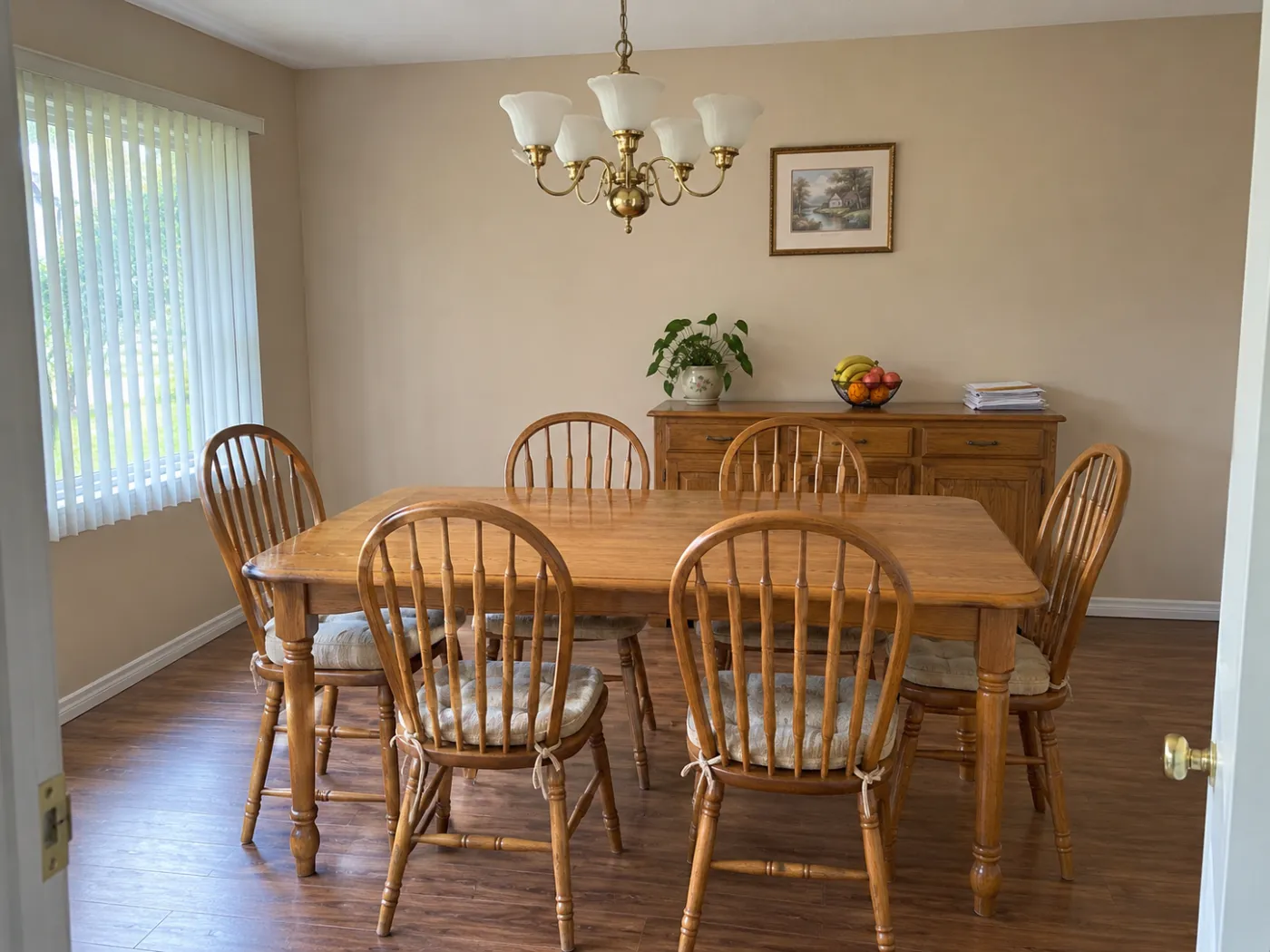
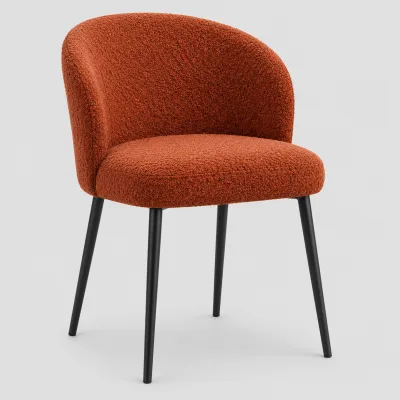 @1
Replace with this chair
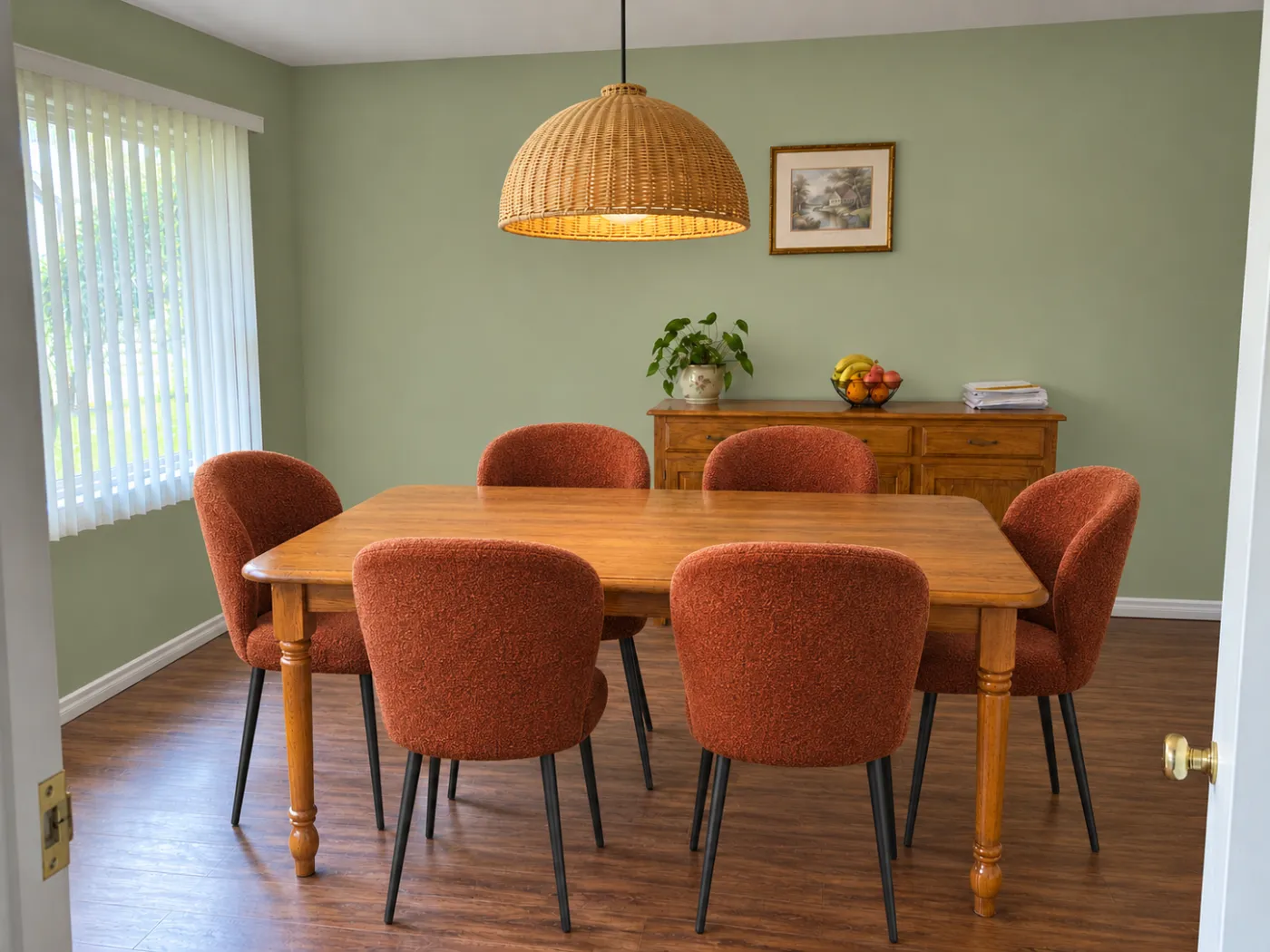 Before
After
Why Spot Edit exists
Ask most AI design tools to change your sofa and you get a new sofa, a different rug, a wall that moved, and a window that is no longer yours. Image models are built to generate, and generating means redrawing. So one small request turns into a gamble on everything you already liked, and after a few rounds the picture is of a nice room that is not your room.
We wrote about this in Why AI Keeps Changing Things You Didn't Ask It To: preservation is part of the design brief. A real room is mostly things you are keeping. The floor is staying. The window is not moving. The table was your grandmother's. A design tool has to protect those as carefully as it changes the rest, and Spot Edit is the feature that does it. It follows from the larger belief that AI shouldn't design for you: you decide what changes, and you decide what stays.
How to change one thing in a room photo with Spot Edit
1. Open Spot Edit and tap to pin
Open your photo, or any version of the room you have already made, and choose Spot Edit. Then tap the exact thing you want changed. A numbered pin lands where you tapped: @1, then @2, and so on. There is no outline to trace and no brush to steady. One tap marks the spot.
2. Tell the pin what it should become
Each pin gets its own short instruction, in your own words and in any language: "replace with a velvet sofa", "repaint in soft sage green", "add a floor lamp here", "remove this". Say what the thing is and what you want instead. The pin tells Idori where to look, and the sentence tells it what to do.
3. Attach a reference photo for an exact piece
When you have a specific product in mind, show it. Add a photo from your camera or your photo library to the pin, and Idori uses that piece as the target: the pendant from the store's product page, the fabric swatch you photographed, the tile sample on your counter. The pin then shows the reference as a small thumbnail so you can see at a glance which spot carries which product.
4. Add up to four pins and tie them together
One edit can carry up to four pins, each with its own instruction and reference. If you want to say more, type in the prompt and mention pins by number. Type @ and Idori offers your pins, so "make @1 match the wood tone of @2" is a sentence it understands. The prompt is optional: pins with instructions are enough to send.
5. Send, and only the pins change
Idori edits the pinned spots and leaves the rest of the image alone. The result is saved as a new version, labeled with how many spots were edited, on top of the photo it came from. Nothing is overwritten, so the room before the edit is always one swipe back in your Version History.
What you can do with a pin
A pin is not limited to one kind of change. The instruction decides what happens at that spot.
| You want to | Pin | Example instruction |
|---|---|---|
| Change a color | The wall, the cabinets, the front door | "Repaint in warm white", "paint the cabinets navy" |
| Swap one piece | The sofa, a chair, the ceiling light | "Replace with a low linen sofa in oatmeal" |
| Try an exact product | The piece it would replace | Attach the product photo, "replace with this" |
| Add something | The empty corner or bare floor | "Add a tall floor lamp here", "add a jute rug under the table" |
| Remove something | The thing you want gone | "Remove this cabinet and continue the wall" |
| Change a material | The backsplash, the countertop, the floor | "Retile in glossy white subway tile" |
The same pins work anywhere Idori does. In a kitchen, pin the cabinets and the backsplash and leave the counters you just paid for. On a house exterior, pin the siding, the trim, and the front door as separate spots and keep the roof. In a yard, pin the fence and the bare patch and keep the trees.
A worked example: one dining room, three pins
The dining room above is a real Spot Edit result. The table and the sideboard are staying, so they get no pin. Three things are bothering the owner, so three things get pinned.
- @1, the chairs, with a reference. The pin sits on one of the spindle-back chairs, and its reference is a photo of a rust boucle chair from a store. The instruction is one word: replace. All six chairs become the chair in the photo, each in the place of the one it replaced.
- @2, the wall. The pin sits on the beige back wall with the instruction "repaint in sage green". The framed print, the sideboard in front of it, and the light falling across it stay as they were, on a wall that is now green.
- @3, the light. The pin sits on the brass chandelier with the instruction "swap to a rattan pendant". The new light hangs from the same point in the ceiling.
Then drag the slider and look at what was not pinned. The oak table, the fruit bowl, the plant, the blinds, and the floor are in the same place in both frames. That is the whole point of the feature: the picture is still a picture of this dining room, so it can be trusted as a preview of this dining room.
Spot Edit, a full redesign, or a brush: which one to use
Idori has other ways to change a room, and they are for different moments. AI Ideas, a curated style, or a Freeform Prompt are for direction: you are still finding out what the room should be, and you want the whole picture to move. Spot Edit is for decisions: the direction is right and one or two things are not.
Many photo editors offer a third way, a brush or eraser where you paint over the object and ask for a replacement. It works when the mask is careful, and it puts the precision work on your fingertip. Spot Edit moves that work to the app. You point and describe, the way you would to a person standing in the room with you: "that chair, in this fabric".
What Spot Edit does not do
Four pins per edit. One edit carries up to four spots. A fifth change goes in the next edit, on the new version.
A pin is a point, not a painted area. You do not draw the boundary of the change. Idori works out the object from where you tapped and what you wrote, so name the thing clearly ("the back wall", "the six dining chairs") when the tap alone could mean more than one.
A reference photo is a preview, not a fit check. Idori shows the piece in your room at a believable scale and in your light. It does not measure the product or the room, so check dimensions before you order.
It is not a shopping list. Spot Edit shows a product you bring. It does not link to stores or tell you where to buy what it rendered from a text instruction.
Edits build on the latest version. Pins go on the newest version of a project. To edit from an earlier one, Branch from it and pin there.
Getting the most out of it
- Name the thing and the result. "Replace the brass chandelier with a woven rattan pendant" beats "make this nicer". Material, color, and shape are the words that matter.
- Use a clean product photo as the reference. A front or three-quarter view on a plain background, like most store listings, gives the clearest target.
- One decision per pin. If the wall color and the art on it are separate decisions, give them separate pins, or separate edits, so you can judge each one.
- Check the edit with Compare. Tap Compare on the new version and drag across the room. Only the pinned spots should move under the divider.
- Use the bigger screen for small targets. A drawer pull or a single cushion is easier to pin precisely on an iPad.
Change one thing in your own room
Take a photo, pin what bothers you, and say what it should become. Spot Edit is free on iPhone and iPad.
Download IdoriQuestions people ask
Yes. In Idori, open Spot Edit, tap the thing you want changed to pin it, and type what it should become. Only the pinned spot changes. The walls, floor, window, and furniture you did not pin stay as they are in your photo.
Idori is built for precision. Spot Edit lets you pin up to four exact spots on a photo of your room and give each one its own instruction and an optional reference photo, so you decide exactly what changes and everything else is kept.
Pin the wall with Spot Edit and type the color, for example "repaint in soft sage green". Because only pinned spots change, the furniture, floor, and window stay the same and you see the new color on your real wall.
Yes. Pin the piece you want to replace, then attach a photo of the product from your camera or photo library as that pin's reference. Idori places that piece in the pinned spot, matched to your room's angle and light. It is a realistic preview, not a measured fit check.
Up to four pins per edit, each with its own instruction and optional reference photo. For more changes, send the edit and pin again on the new version. Every edit is saved as a version, so nothing is lost.
Yes. Spot Edit is free in Idori on iPhone and iPad.
A brush asks you to paint a careful mask over the object, and the result depends on how well you traced it. Spot Edit asks for one tap and a sentence: you pin the object and say what it should become, and Idori works out its edges.
Yes. Spot Edit works on any photo you bring into Idori: cabinets, backsplash, and countertops in a kitchen, siding, trim, and the front door on a house exterior, and fences, patios, and planting in a yard.